Get Effortless PC Cleaning Starts Here With a Free License of IObit Uninstaller 15 Pro
Is your PC feeling sluggish? Do you constantly struggle with stubborn programs that refuse to be deleted, or are you tired of the “leftover” files that clutter your hard drive and slow down your system? I’ve been there, and I know how frustrating it is to feel like you don’t have full control over your own computer.
That is why I am thrilled to share that we are hosting a special giveaway for IObit Uninstaller 15! This is your chance to get the ultimate tool for a cleaner, faster, and more secure PC at no cost.
Why IObit Uninstaller 15 Pro is a Game-Changer
Standard Windows uninstallers often leave behind “digital junk”—registry entries, hidden folders, and orphaned files that slowly degrade your performance. IObit Uninstaller 15 solves this by performing a “Powerful Scan” that digs deep into your system to remove every trace of unwanted software. Whether you are dealing with stubborn programs, malicious browser extensions, or just general system bloat, this version is designed to handle it all with a cleaner, more intuitive interface.
How to Get Started with IObit Uninstaller 15 Pro (Step-by-Step)
Once you have your license key, getting your system back to peak performance is incredibly straightforward. Here is how I use it to keep my PC clean:
Step 1: Download and Activate
Install this uninstaller for Windows from the official IObit website. Once launched, enter your license key in the “Register” section to unlock the full Pro feature set, including automatic leftover cleaning and real-time installation monitoring.
5D2FE-D8063-F1CB4-3C0TE
(Limited-time offer Available for the first 100 users. Giveaway ends on July 10th, 2026.)
Step 2: Identify Stubborn Software
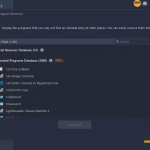
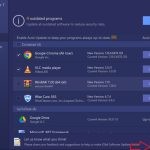
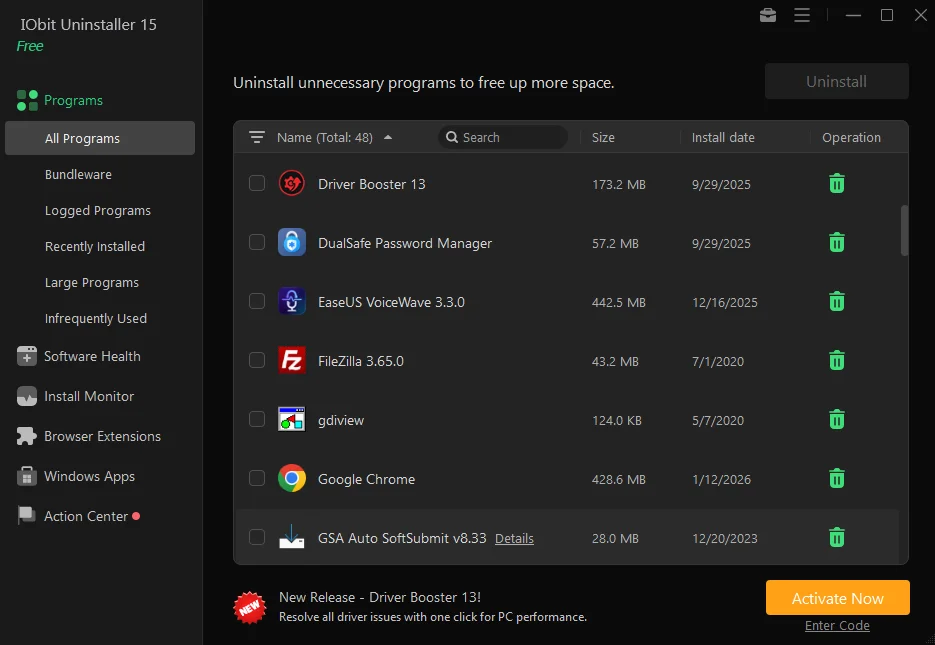
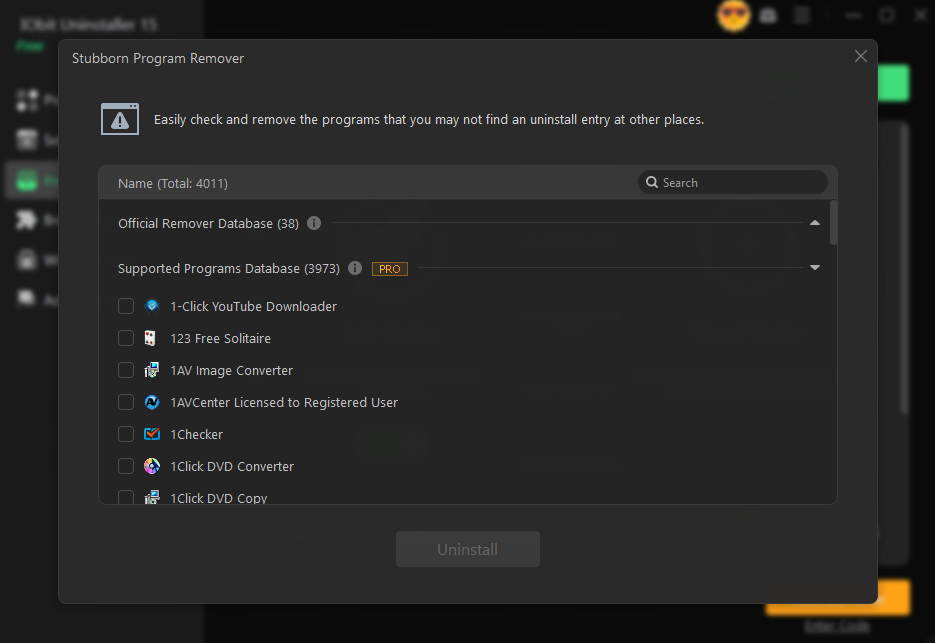
Open the main dashboard. You’ll see a list of your installed apps. Then head to the “Stubborn Program Remover” tool (find it in the top right corner, a toolbox icon). Click it, and it will automatically detect apps that are notoriously difficult to remove via standard methods.
Step 3: Perform a Powerful Uninstall
Select the program you want to remove and click the Uninstall button. Pro Tip: Make sure the “Automatically remove residual files” box is checked. This ensures the software doesn’t just delete the app but also wipes out all related registry keys and temporary data.
Step 4: Clean Up Browser Extensions
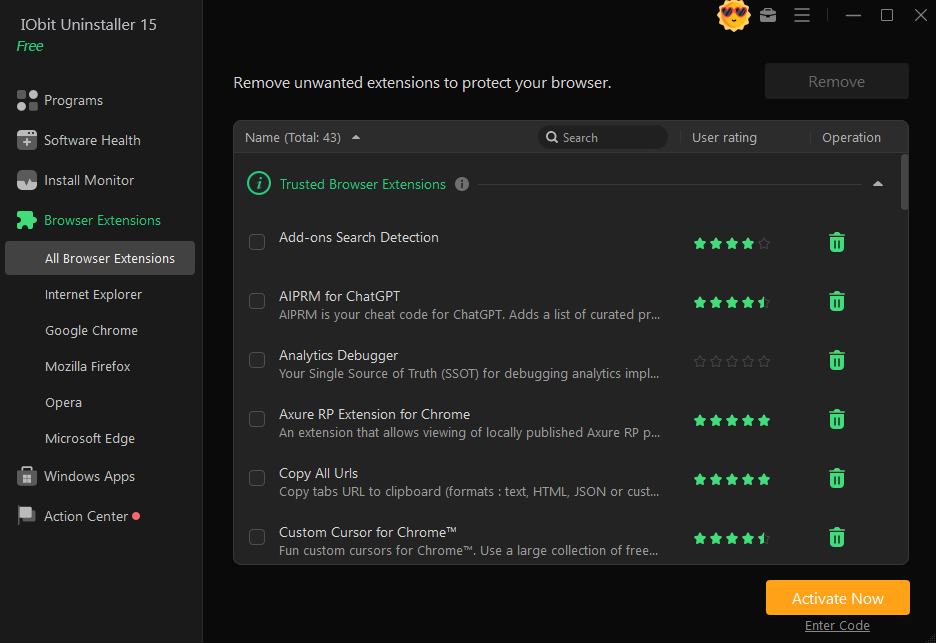
Don’t forget the “Browser Cleanup” tab. I regularly check this to remove malicious plugins or hijacked search engines that I never authorized, which keeps my browsing experience fast and safe.
Step 5: Let AI Do the Rest
IObit Uninstaller 15 Pro works in the background to monitor new installations. If you install a program that includes bundled “adware” or unwanted extras, the software will alert you, allowing you to remove them instantly before they take root in your system.
Don’t Miss Out!
Regular maintenance is the secret to a long-lasting, high-performance PC. Don’t wait for your system to become overwhelmed by clutter—take control today. Head over to the official IObit Uninstaller page to download it, enter the giveaway key to unblock all features, and let’s get your PC running like new again!