
How to Add Widgets on Mac
Widgets on macOS let you quickly view information like weather, calendar events, reminders, battery status, and more—without opening full apps. With recent macOS versions (Monterey, Ventura, Sonoma, and later), Apple has made widgets more powerful and customizable.
This guide explains how to add widgets on Mac, customize them, and manage them efficiently.
What Are Widgets on macOS?
Widgets are small, interactive panels that display real-time information from apps. On Mac, widgets live in the Notification Center or directly on the desktop (macOS Sonoma and later).
Common widget examples include:
- Weather
- Calendar
- Clock
- Reminders
- Notes
- Battery
- Third-party app widgets
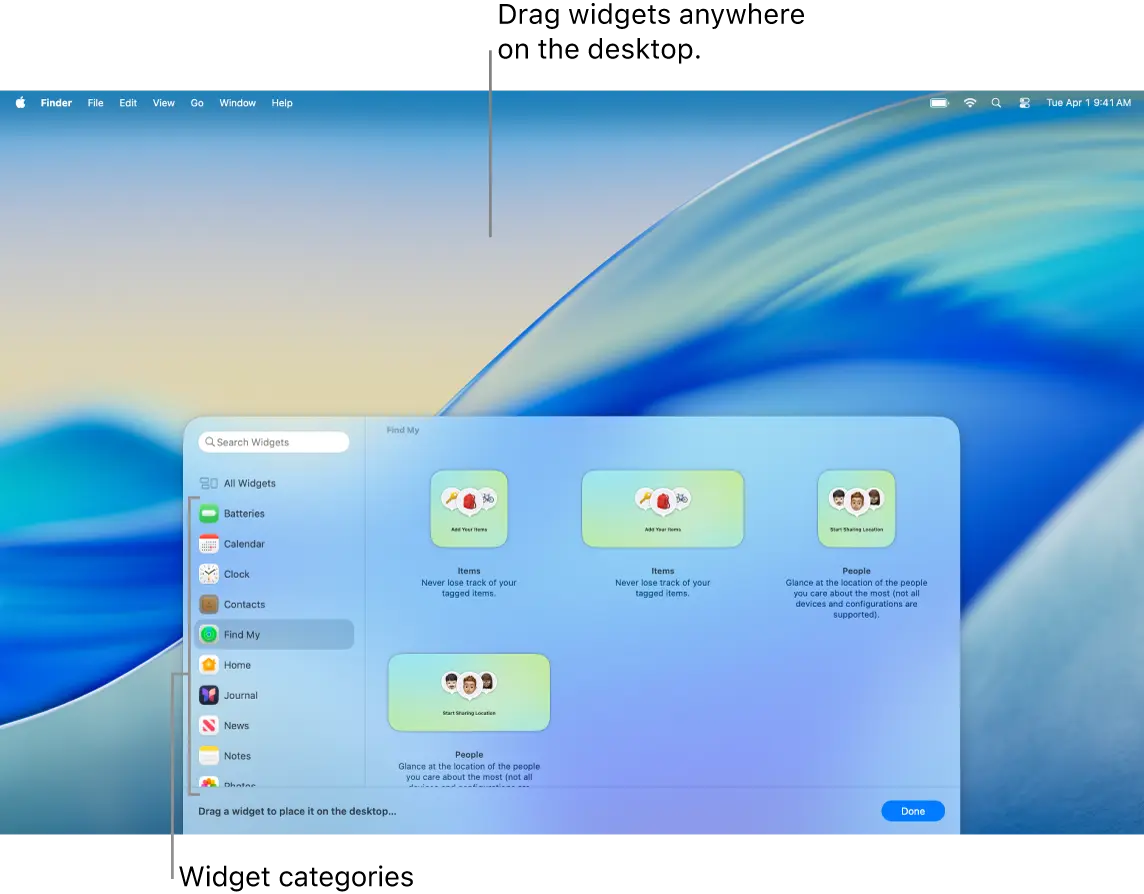
How to Add Widgets on Mac (Notification Center)
Step-by-Step Instructions
- Click the date and time in the top-right corner of your Mac screen
- The Notification Center will open
- Scroll to the bottom and click Edit Widgets
- Browse widgets by category or use the search bar
- Select a widget and choose a size (small, medium, large)
- Click Add Widget
The widget will immediately appear in the Notification Center.
How to Add Widgets to the Mac Desktop (macOS Sonoma or Later)
If you’re using macOS Sonoma, you can place widgets directly on your desktop.
Method 1: Right-Click Desktop
- Right-click (or Control-click) on an empty area of the desktop
- Select Edit Widgets
- Choose a widget and size
- Drag it onto the desktop or click Add Widget
Method 2: Drag from Notification Center
- Open Notification Center
- Click Edit Widgets
- Drag a widget from the panel onto the desktop
How to Add iPhone Widgets to Mac
macOS allows you to use iPhone widgets on your Mac if:
- You’re signed in with the same Apple ID
- Your iPhone is nearby or on the same network
Steps
- Open Edit Widgets
- Scroll to the From iPhone section
- Select an iPhone widget
- Choose the widget size and add it
No additional apps are required.
How to Customize Widgets on Mac
You can customize widgets to show the information you care about.
Customize a Widget
- Right-click the widget
- Select Edit Widget
- Adjust available options (location, list, calendar, etc.)
- Click outside the widget to save
Change Widget Size
- Remove the widget
- Re-add it in a different size (resizing is not dynamic)
How to Remove Widgets on Mac
Removing widgets is quick and easy:
- Right-click the widget
- Click Remove Widget
This works for both desktop and Notification Center widgets.
Best Tips for Using Widgets on Mac
- Use Smart Stacks to group related widgets
- Keep widgets minimal to avoid desktop clutter
- Combine Mac and iPhone widgets for better productivity
- Update apps regularly to get new widget features
Troubleshooting: Widgets Not Showing?
If widgets don’t appear:
- Make sure your macOS is updated
- Check System Settings → Desktop & Dock → Widgets
- Confirm iPhone widgets are enabled
- Restart your Mac
Conclusion
Adding widgets on Mac is a simple way to boost productivity and access important information at a glance. Whether you prefer widgets in Notification Center or directly on your desktop, macOS gives you flexible options to personalize your workflow.
Once set up, widgets can save time and keep your most-used information always visible.
