How to Add Bullet Points in Excel
Bullet points can make Excel worksheets easier to read by organizing lists, notes, tasks, or key information inside cells. Although Microsoft Excel does not have a built-in bullet list button like Word, there are several easy ways to add bullets.
Why Use Bullet Points in Excel?
Bullet points help you:
- Organize text clearly
- Create to-do lists
- Highlight important information
- Improve worksheet readability
- Make dashboards and reports look cleaner
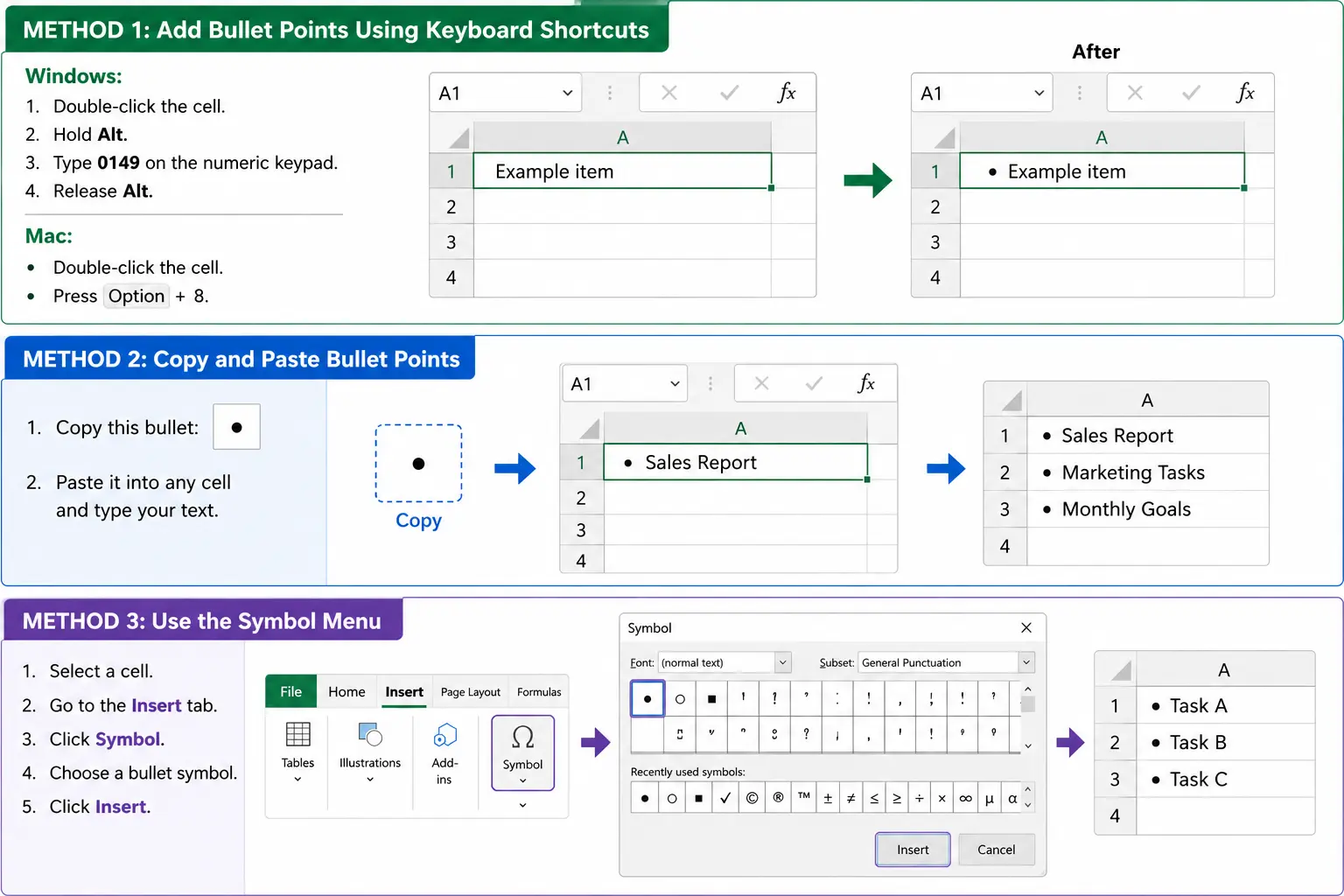
Method 1: Add Bullet Points Using Keyboard Shortcuts
This is the fastest method for most users.
On Windows
- Double-click the cell where you want the bullet.
- Hold
Alt. - Type
0149on the numeric keypad. - Release
Alt.
You will see a bullet point like this:
• Example item
On Mac
- Double-click the cell.
- Press:
Option + 8
This inserts a bullet instantly.
Method 2: Copy and Paste Bullet Points
You can also simply copy a bullet symbol and paste it into Excel.
Copy this bullet:
•
Then paste it into any cell and type your text.
Example:
• Sales Report
• Marketing Tasks
• Monthly Goals
This method works well if you only need a few bullets.
Method 3: Use the Symbol Menu
Excel includes bullet symbols in the Symbol library.
Steps
- Select a cell.
- Go to the Insert tab.
- Click Symbol.
- Choose a bullet symbol such as:
- •
- ○
- ▪
- Click Insert.
This method is useful if you want different bullet styles.
Method 4: Add Multiple Bullet Points in One Cell
You can place several bullet points inside a single cell.
Windows
- Enter the first bullet point.
- Press:
Alt + Enter
- Add another bullet point.
- Repeat for additional lines.
Example:
• Apples
• Oranges
• Bananas
Mac
Use:
Control + Option + Return
to create a new line inside the same cell.
How to Make Bullet Lists Look Better
To improve appearance:
- Increase row height for spacing
- Use Wrap Text
- Align text to the top-left
- Add indentation if needed
- Choose consistent bullet styles
Common Problems and Fixes
Bullet Shortcut Not Working
Make sure:
- Num Lock is enabled
- You use the numeric keypad, not the top number row
Bullets Appear as Squares
This usually means the selected font does not support the bullet symbol. Try fonts like:
- Arial
- Calibri
- Times New Roman
Best Uses for Bullet Points in Excel
Bullet points are great for:
- Task lists
- Meeting notes
- Inventory summaries
- Project tracking
- Dashboard comments
- Data annotations
Final Thoughts
Adding bullet points in Microsoft Excel is simple once you know the shortcuts and formatting options. Whether you use keyboard shortcuts, symbols, formulas, or custom formatting, bullet lists can make your spreadsheets cleaner and more professional.