PDF files are now widely used due to their ease of data viewing. However, for students, teachers, designers, and business professionals, handling PDF files is a regular part of their work. A common challenge many users face is resizing images within PDF files—whether to reduce file size, improve layout consistency, or prepare documents for printing or online sharing. Unlike Word or PowerPoint, PDFs don’t offer easy editing, so sometimes tools are needed to help with image manipulation.
Recently, a powerful and user-friendly PDF solution has emerged that simplifies, streamlines, and professionally enhances the image editing process. This is JOPDF, which will be introduced below. I will demonstrate four ways to easily resize images in documents using JOPDF.
Why Resizing Images in PDFs is Crucial?
Before introducing specific methods, we need to understand the importance of resizing images in PDF files:
● Reducing file size speeds up sharing and uploading
● Improving overall layout and enhancing readability
● Optimizing document printing quality
● Meeting the need for on-demand editing
A reliable PDF tool should be able to resize images without affecting image quality—and this is precisely where JOPDF excels.
Method 1: Resize PDF Images Directly with JOPDF (Recommended)
JOPDF is an all-in-one PDF editing solution designed for both beginners and professionals. It offers a clean interface, powerful editing features, and precise control over PDF content, including images.
How JOPDF Helps
With JOPDF, you can:
Select images inside a PDF and resize them proportionally
Maintain original image clarity and resolution
Adjust layout without breaking text alignment
Save changes instantly without reformatting the document
Steps to Resize an Image Using JOPDF
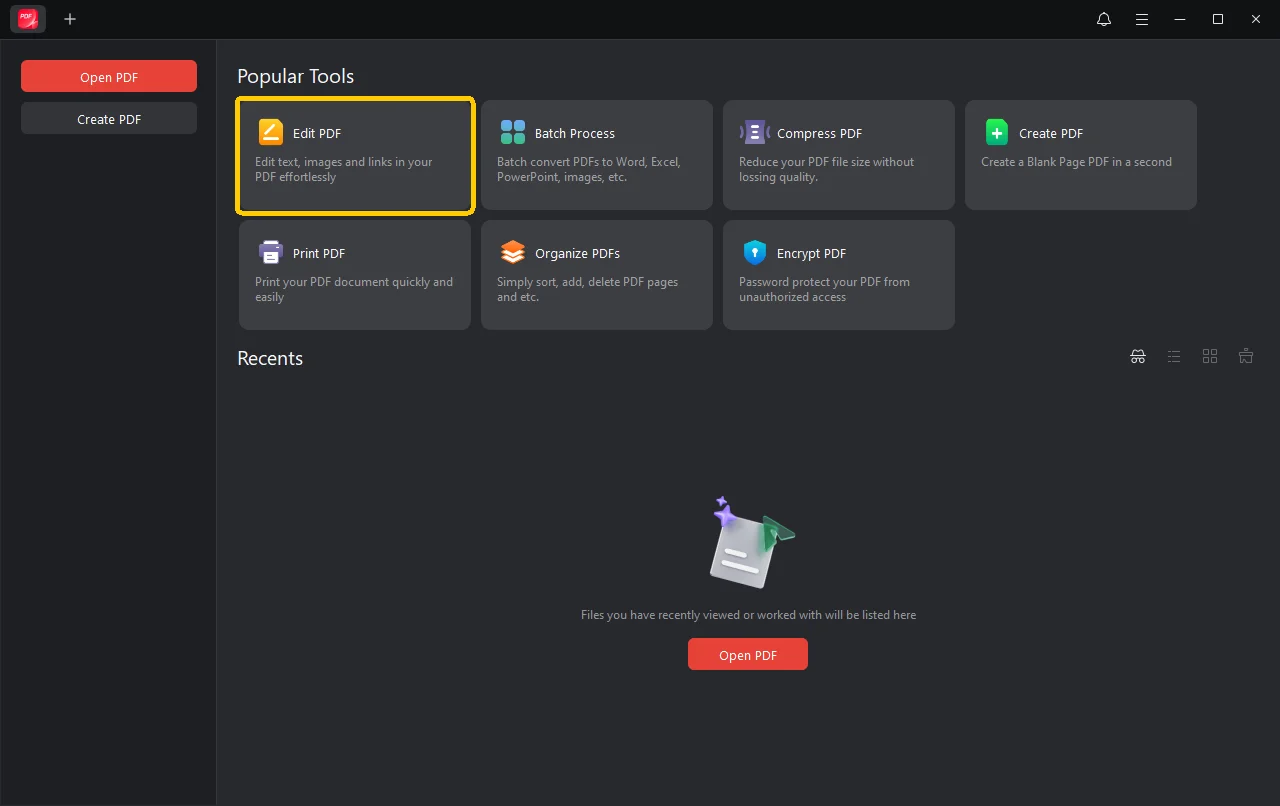
Open JOPDF and click the “Edit PDF” option
Choose your PDF file
Click on the image you want to resize
Drag the corners or enter exact size values
Save your updated PDF
This method is ideal because it’s fast, accurate, and beginner-friendly, making JOPDF the preferred choice for most users.
Method 2: Compressing Images in PDFs Using JOPDF
Another effective way to “resize” images is to compress them, especially useful when your goal is to reduce file size rather than resize them.
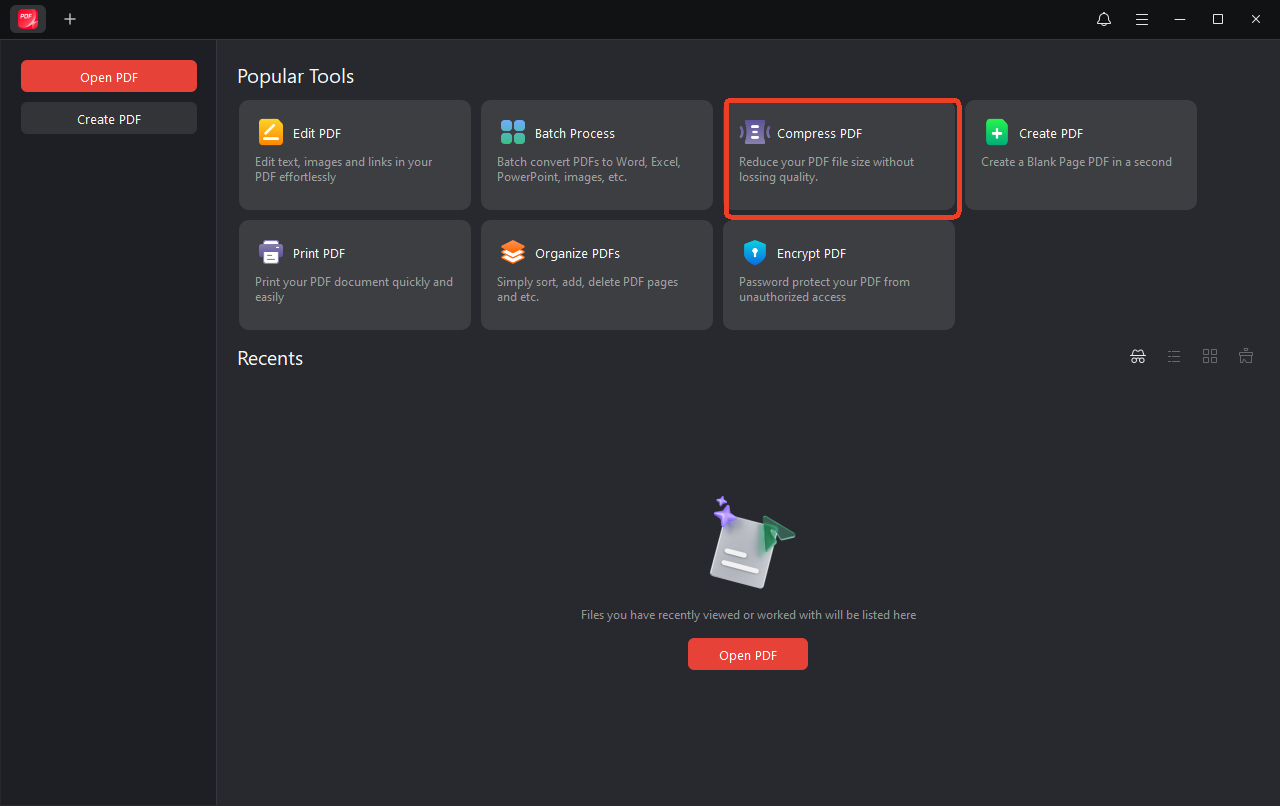
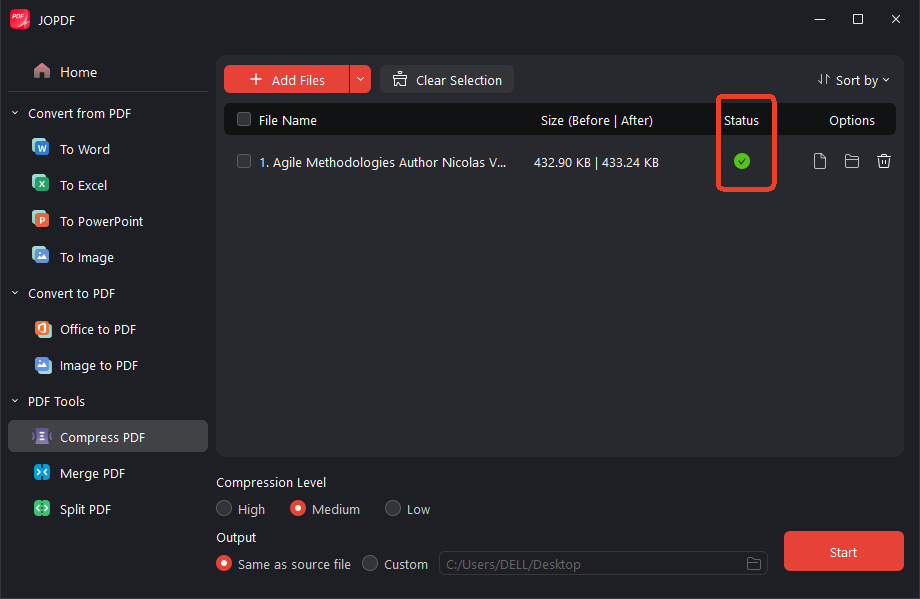
Open JOPDF and click “Compress PDF”. Select the PDF file you want to compress.
Just wait a few seconds, and your file will be compressed.
This is especially useful for presentations, scanned documents, or reports containing many images.
Method 3: Convert PDF to Editable Format using JOPDF
JOPDF can also convert PDFs to editable formats such as Word or images. After conversion, you can freely adjust the image size and then convert the file back to PDF.
Why this method works:
* You have complete control over image size
* You can edit with your familiar tools, it’s simple
* The formatting won’t be messed up when converting back to PDF
Thanks to JOPDF’s high-precision conversion engine, this method avoids common problems like formatting errors or image distortion.
Method 4: Crop and Resize Images in PDFs with JOPDF
Sometimes simply resizing isn’t enough; you might want to crop or move images to improve their appearance. JOPDF offers precise cropping and alignment tools, allowing you to:
* Remove unwanted parts of an image
* Adjust the position of an image on the page
* Create cleaner, more professional PDFs
This is especially useful when creating promotional materials, teaching materials, and formal documents.
Why choose JOPDF over other PDF tools?
There are countless PDF tools on the market, many offering basic editing capabilities, but JOPDF prioritizes efficiency, quality, and ease of use. Its main advantages are as follows:
Simple interface, usable by people of all skill levels.
PDF editing, resizing, and compression functions are all included.
High output quality with minimal distortion.
Fast processing speed, handling even large and complex PDF files.
Suitable for students, teachers, companies, and content creators.
No need to search everywhere for tools; JOPDF is all you need.
In summary
Resizing images in PDFs is actually quite easy. With the right tool, it only takes a few clicks. As this guide mentions, there are four simple methods to adjust image sizes in PDFs, and each method relies on JOPDF—whether it’s directly resizing images, compressing, converting, or cropping.
If you’re looking for a reliable, professional, and user-friendly PDF tool, JOPDF is a great choice. It simplifies complex PDF editing tasks, helping you create clear and high-quality documents every time.
Whether you’re working, studying, or sharing files online, if you want your PDFs to look good, JOPDF will ensure they look exactly how you want them to.