Adding music to Google Slides is a great way to make your presentation more engaging, professional, and memorable. Whether you’re creating a business pitch, a school project, or a slideshow for an event, background music can enhance the overall experience.
In this guide, you’ll learn different methods to add music to Google Slides, including background music that plays automatically and audio for specific slides.
Why Add Music to Google Slides?
Music can:
Set the mood of your presentation
Keep your audience engaged
Make storytelling more impactful
Enhance visual content
Google Slides doesn’t allow direct uploads of audio files like PowerPoint, but there are simple workarounds that work just as well.
Method 1: Add Music Using Google Drive (Recommended)
This is the most common and reliable method.
Step 1: Upload Music to Google Drive
Go to Google Drive
Click New → File upload
Upload your audio file (MP3 or WAV works best)
Right-click the file → Get link
Set access to “Anyone with the link” (Viewer)
Step 2: Insert Music into Google Slides
Open your Google Slides presentation
Select the slide where you want the music
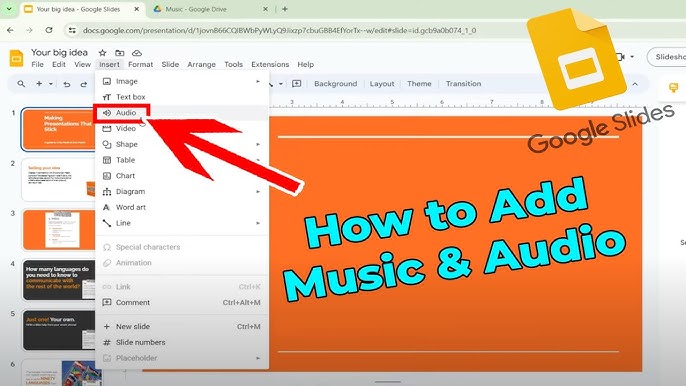
Click Insert → Audio
Choose the uploaded audio file from Google Drive
Click Insert
A speaker icon will appear on the slide.
Step 3: Adjust Audio Settings
Click the speaker icon, then use the Format options panel to:
Play automatically or on click
Loop audio (great for background music)
Hide the speaker icon during presentation
Adjust volume
✅ Best for background music and full control
Method 2: Add Music Using YouTube (Video Background)
Google Slides allows you to insert YouTube videos, which can be used for music.
Steps:
Click Insert → Video
Choose YouTube
Search for a music track or paste a YouTube URL
Resize the video and move it off-slide if needed
Click Format options
Set the video to autoplay
⚠️ Note: Internet connection is required during the presentation.
Method 3: Add Music for a Single Slide Only
If you want music on just one slide:
Insert the audio file on that slide
Disable “Loop audio”
Set playback to On click or Automatically
This is ideal for:
Title slides
Transitions
Special moments in a presentation
Tips for Using Music in Google Slides
Use low-volume background music so it doesn’t overpower your voice
Avoid copyrighted music unless you have permission
Test audio before presenting
Keep file sizes small for faster loading
Common Problems and Fixes
Music not playing?
Check file permissions in Google Drive
Ensure autoplay is enabled
Confirm audio format is supported (MP3/WAV)
Music too loud?
Lower the volume in Format options
Edit the audio file externally before uploading
Final Thoughts
Adding music to Google Slides is easy once you know the right method. Uploading audio through Google Drive offers the best flexibility, while YouTube music works well for online presentations.
With the right music, your presentation can go from ordinary to unforgettable.