Adding a signature in Google Docs is useful for signing contracts, letters, agreements, or official documents without printing them. Google Docs offers several easy ways to insert a signature, whether you want a typed, drawn, or image-based signature.
This guide walks you through all the methods to add a signature in Google Docs, step by step.
Method 1: Add a Signature Using the Drawing Tool (Best Built-In Option)
This is the most popular and professional method.
Steps:
Step 1: Open your document in Google Docs
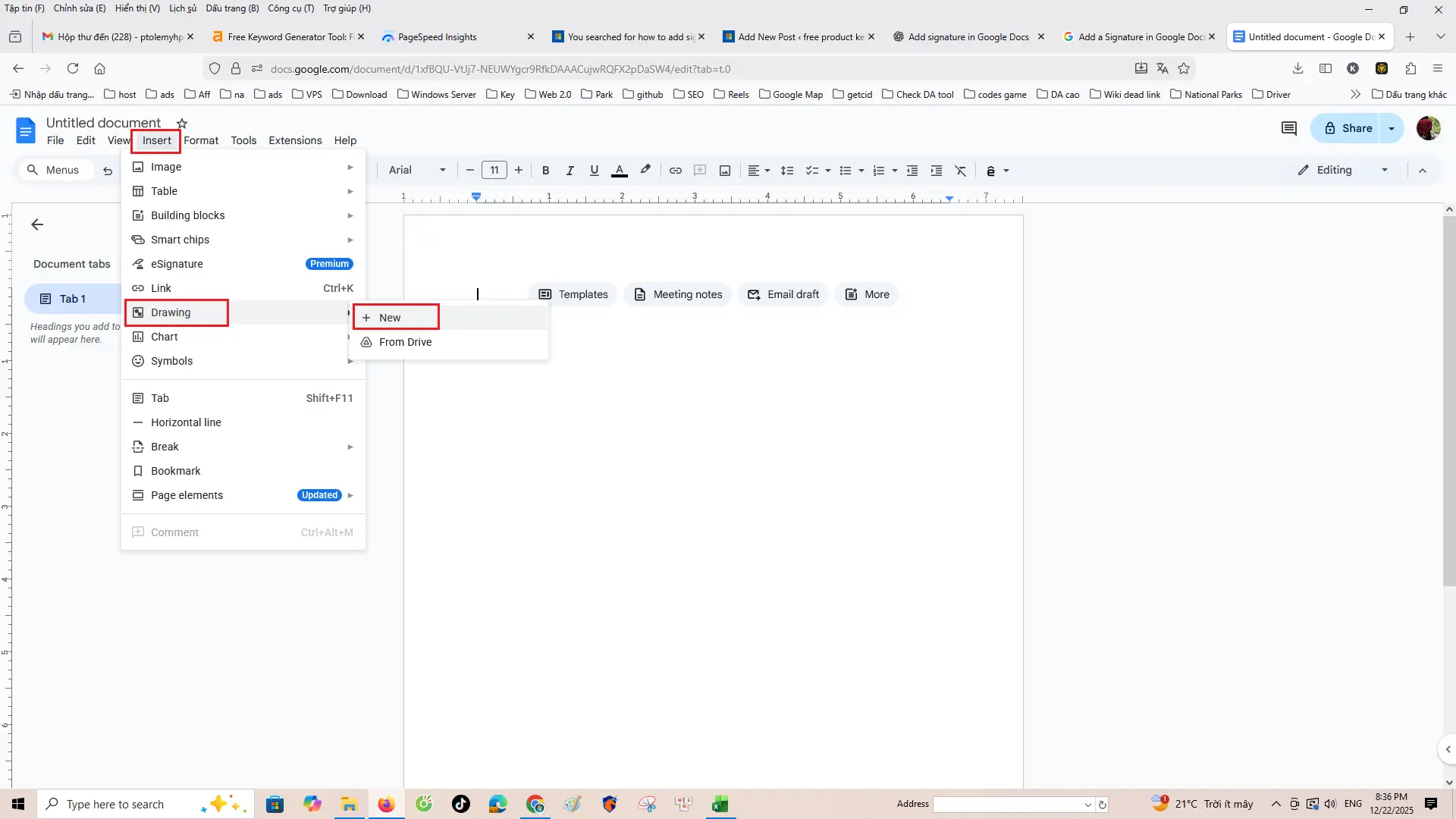
Step 2: Click Insert in the top menu
Step 3: Select Drawing → New
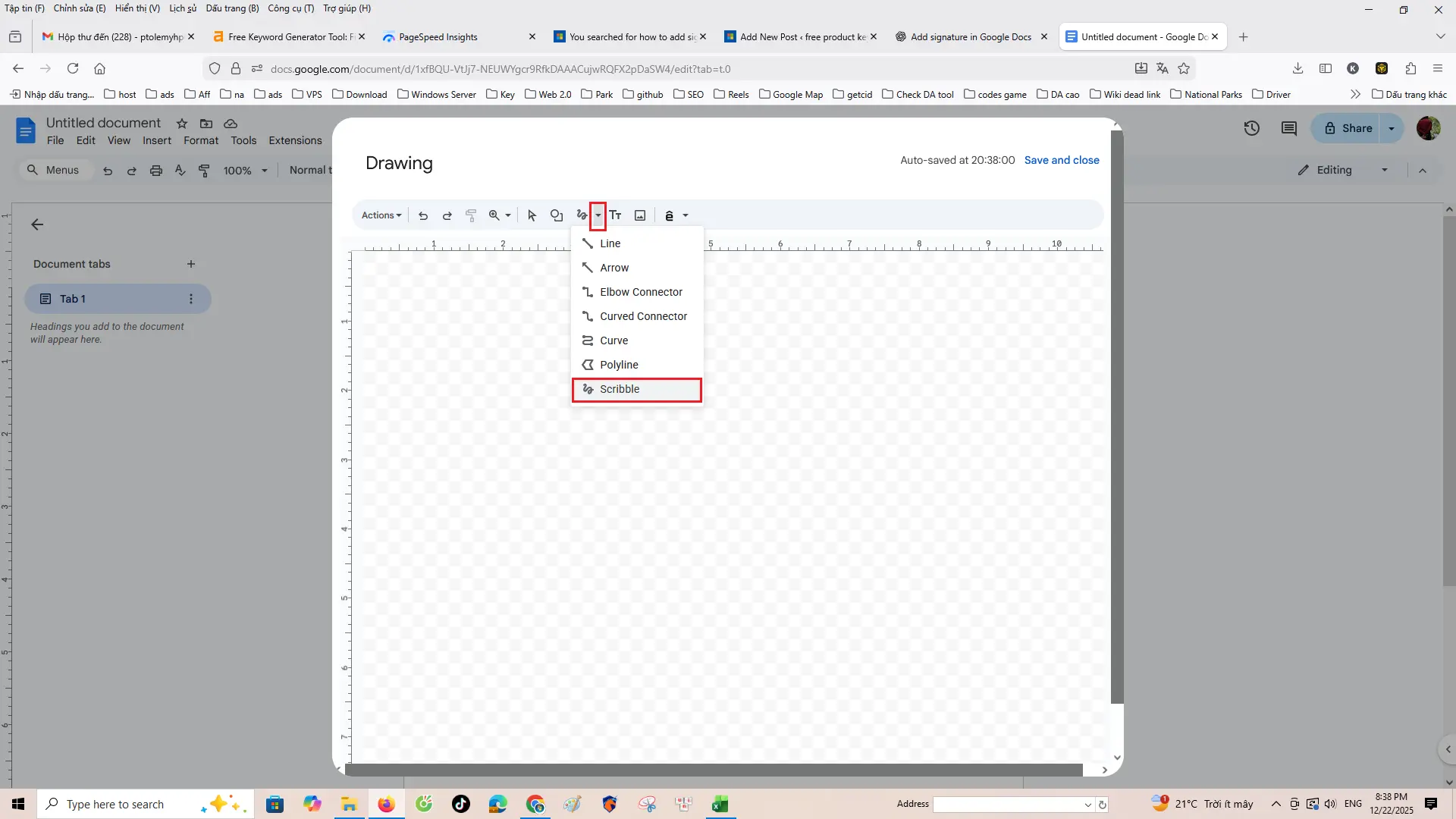
Step 4: In the drawing window, click Line (▼) and choose Scribble
Step 5: Use your mouse or trackpad to draw your signature
Step 6: Click Save and Close
Your signature will be inserted into the document and can be resized or moved as needed.
Pros:
No extra tools required
Looks handwritten
Fully editable
Method 2: Insert a Signature as an Image
If you already have a scanned or digital signature, this method works best.
Steps:
Sign your name on paper
Scan or take a clear photo of the signature
Save it as PNG or JPG
In Google Docs, click Insert → Image
Upload your signature image
Resize and position it properly
Tip: Use Image Options → Text Wrapping → In front of text for better placement.
Method 3: Add a Typed Signature Using Fonts
This method is fast but less personal.
Steps:
Type your name where the signature should appear
Highlight the text
Choose a cursive-style font such as:
Pacifico
Dancing Script
Allura
Adjust font size and color
Best for: Informal documents or internal use.
Method 4: Use Google Docs Add-Ons (Advanced)
You can install third-party tools like DocuSign or HelloSign.
Steps:
Click Extensions → Add-ons → Get add-ons
Search for a signature tool
Install and follow setup instructions
Best for: Legal documents and multi-party signing.
How to Move or Resize Your Signature
Click on the signature
Drag the corners to resize
Use text wrapping options:
In line
Wrap text
In front of text
For signatures, “In front of text” works best.
Tips for a Professional Signature
Use dark blue or black ink color
Keep the size realistic
Place signature above your printed name
Lock the image position if needed
Conclusion
Adding a signature in Google Docs is simple and flexible. Whether you prefer drawing it, uploading an image, or using an add-on, Google Docs provides multiple options to suit your needs. For most users, the Drawing tool is the quickest and most effective method.
You can now sign documents digitally—no printing required.