How to Add a Shared Mailbox in Outlook
A shared mailbox in Microsoft Outlook allows multiple users to read and send emails from a common email address, such as [email protected] or [email protected]. Shared mailboxes are commonly used by teams to manage customer inquiries, internal requests, or general communication.
This article explains how to add a shared mailbox in Outlook, covering the most common methods and versions.
Prerequisites
Before adding a shared mailbox, make sure:
- You are using Microsoft Outlook (Desktop, Web, or Mobile).
- Your Microsoft 365 or Exchange administrator has granted you permission to access the shared mailbox (Full Access).
- Your Outlook account is connected to Microsoft Exchange or Microsoft 365.
Once permissions are assigned, it may take a few minutes for the mailbox to become available.
Method 1: Add a Shared Mailbox Automatically (Outlook Desktop)
In most cases, Outlook will add the shared mailbox automatically.
Steps:
- Open Outlook.
- Restart Outlook if it was already open.
- Look in the Folder Pane on the left.
- The shared mailbox should appear automatically under your primary mailbox.
✅ This is the easiest method and works if your admin assigned Full Access permissions correctly.
Method 2: Add a Shared Mailbox Manually (Outlook Desktop – Windows)
If the mailbox does not appear automatically, you can add it manually.
Steps:
- Open Outlook.
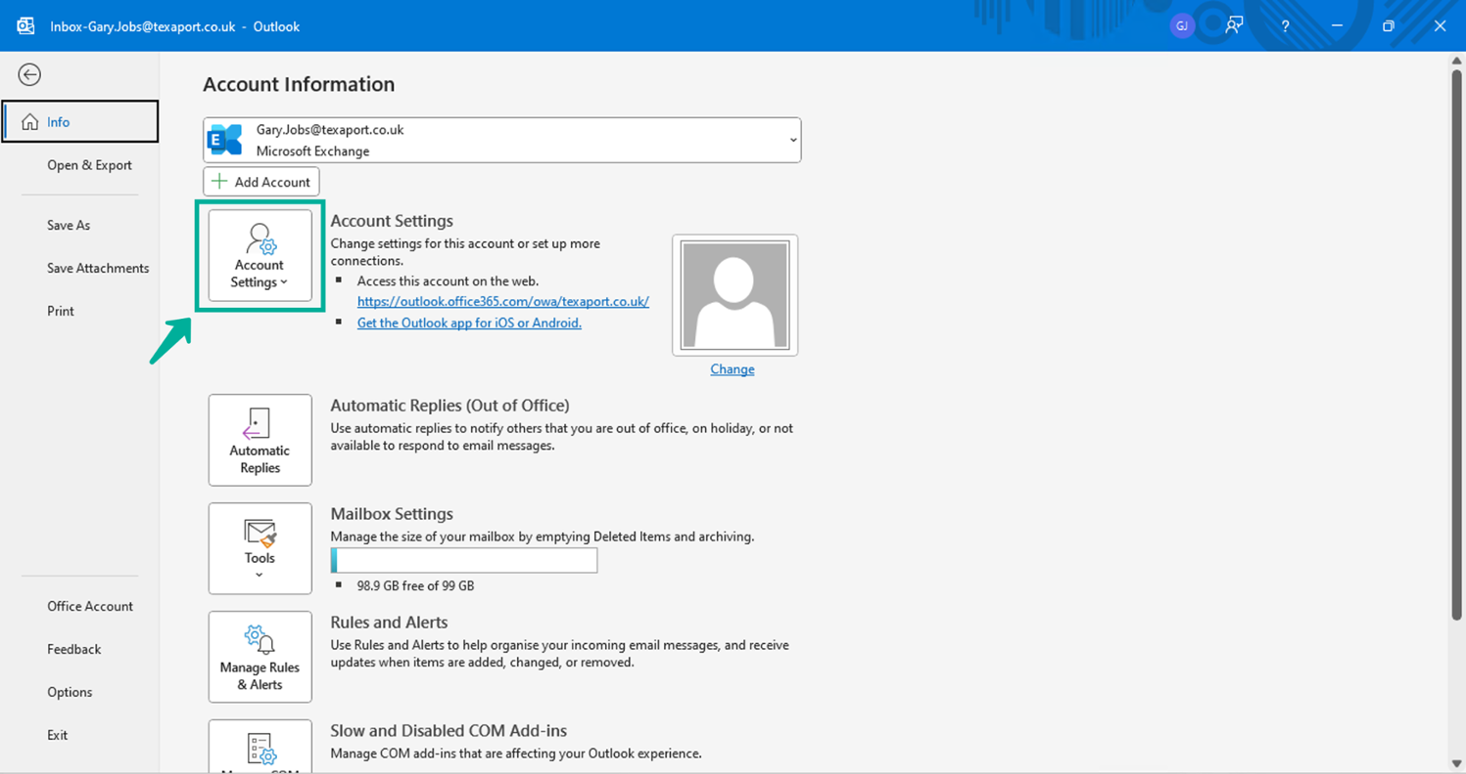
- Click File → Account Settings → Account Settings.
- Select your email account and click Change.
- Click More Settings.
- Go to the Advanced tab.
- Under Open these additional mailboxes, click Add.
- Enter the shared mailbox email address (e.g.,
[email protected]). - Click OK → Next → Finish.
- Restart Outlook.
The shared mailbox will now appear in your mailbox list.
Method 3: Add a Shared Mailbox in Outlook on the Web (OWA)
If you use Outlook through a web browser:
Steps:
- Go to https://outlook.office.com.
- Sign in to your account.
- Right-click your primary mailbox name in the left pane.
- Select Add shared folder.
- Enter the shared mailbox email address.
- Click Add.
The shared mailbox will appear in your folder list.
Method 4: Open a Shared Mailbox in a Separate Browser Tab (Web)
You can also open a shared mailbox as a separate mailbox:
Steps:
- Go to https://outlook.office.com.
- Click your profile picture (top-right corner).
- Select Open another mailbox.
- Enter the shared mailbox email address.
- Click Open.
This opens the shared mailbox in a new browser tab.
Method 5: Add a Shared Mailbox in Outlook Mobile (iOS & Android)
Steps:
- Open the Outlook mobile app.
- Tap your profile icon.
- Tap Add Mail Account.
- Select Add Shared Mailbox.
- Enter the shared mailbox email address.
- Tap Add.
The shared mailbox will appear as a separate inbox in the app.
Sending Emails from a Shared Mailbox
To send emails from the shared mailbox:
Outlook Desktop:
- Click New Email.
- Click From (enable it if not visible).
- Select the shared mailbox address.
- Compose and send your email.
⚠️ Note: You need Send As or Send on Behalf permission to send emails from the shared mailbox.
Troubleshooting Tips
- Mailbox not showing?
Restart Outlook or wait 10–30 minutes after permissions are granted. - Cannot send from shared mailbox?
Ask your admin to assign Send As or Send on Behalf permissions. - Permission errors?
Confirm you have Full Access to the mailbox.
Conclusion
Adding a shared mailbox in Outlook is simple once the correct permissions are in place. Whether you use Outlook Desktop, Web, or Mobile, shared mailboxes help teams collaborate efficiently and manage group emails from a single address.
If you still cannot access the shared mailbox, contact your Microsoft 365 or Exchange administrator for assistance.